Photo Translator – Translate Text in a Photo
Photo Translator - Translate Text in a Photo
Snap a photo of a menu, sign, label or document and translate the text in it across over 25 languages. Our photo translator preserves the original design and layout.
Watermark-free results, ready to use right after download
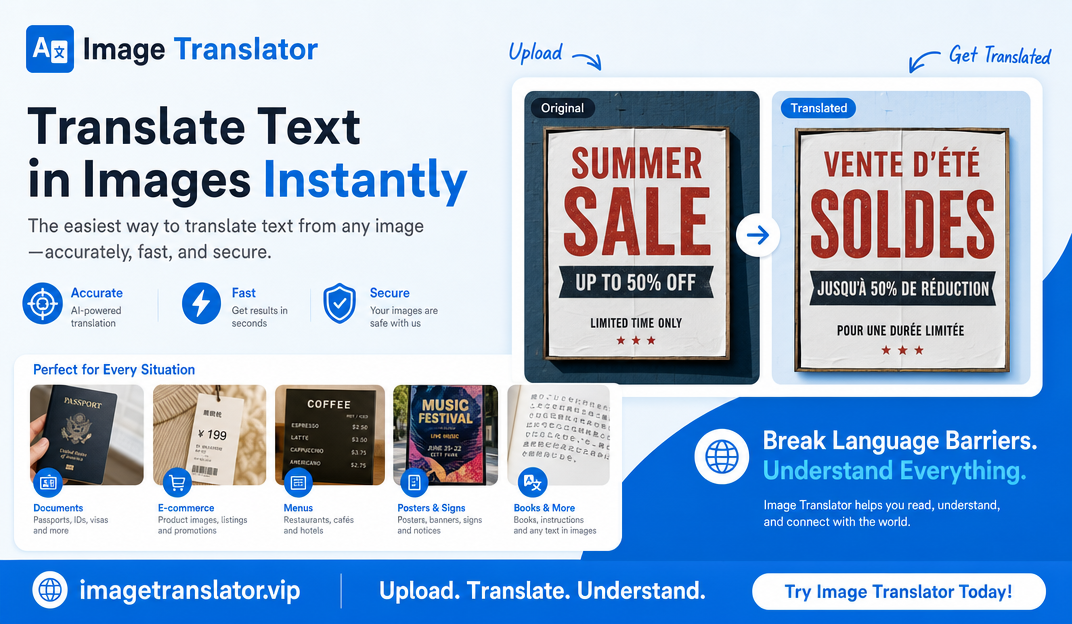
Photo Translator - Upload & Translate Text in a Photo
Take a photo or upload an image, select the target language, and let our photo translator translate the text while preserving the original design and layout.
Please log in to translate the text in your photos. Don't have an account? Register here.
Photo Translator Examples
See how our photo translator handles text in different types of photos while preserving the design.
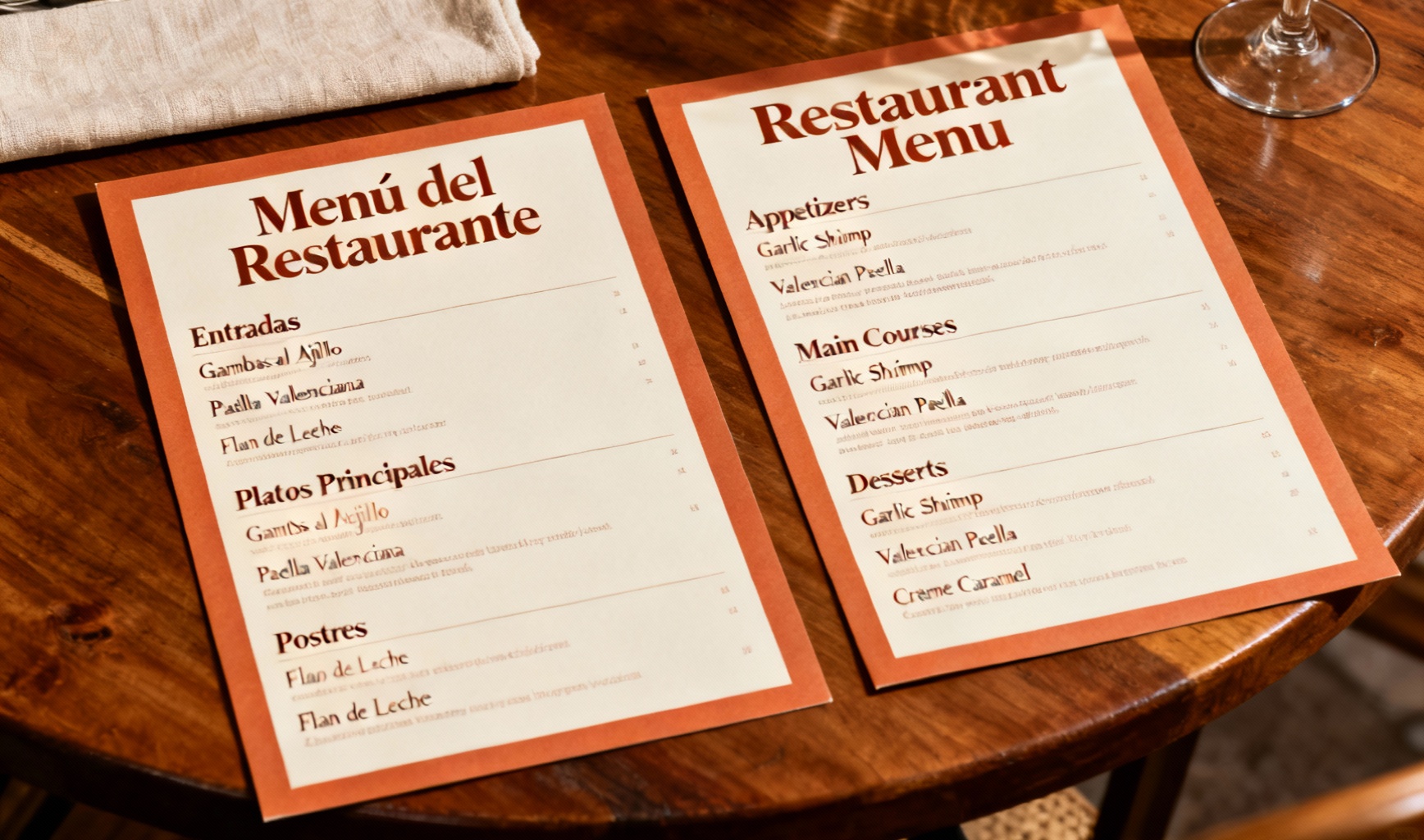
Menu Translation
Translate a restaurant menu from Spanish to English while preserving layout and design elements.
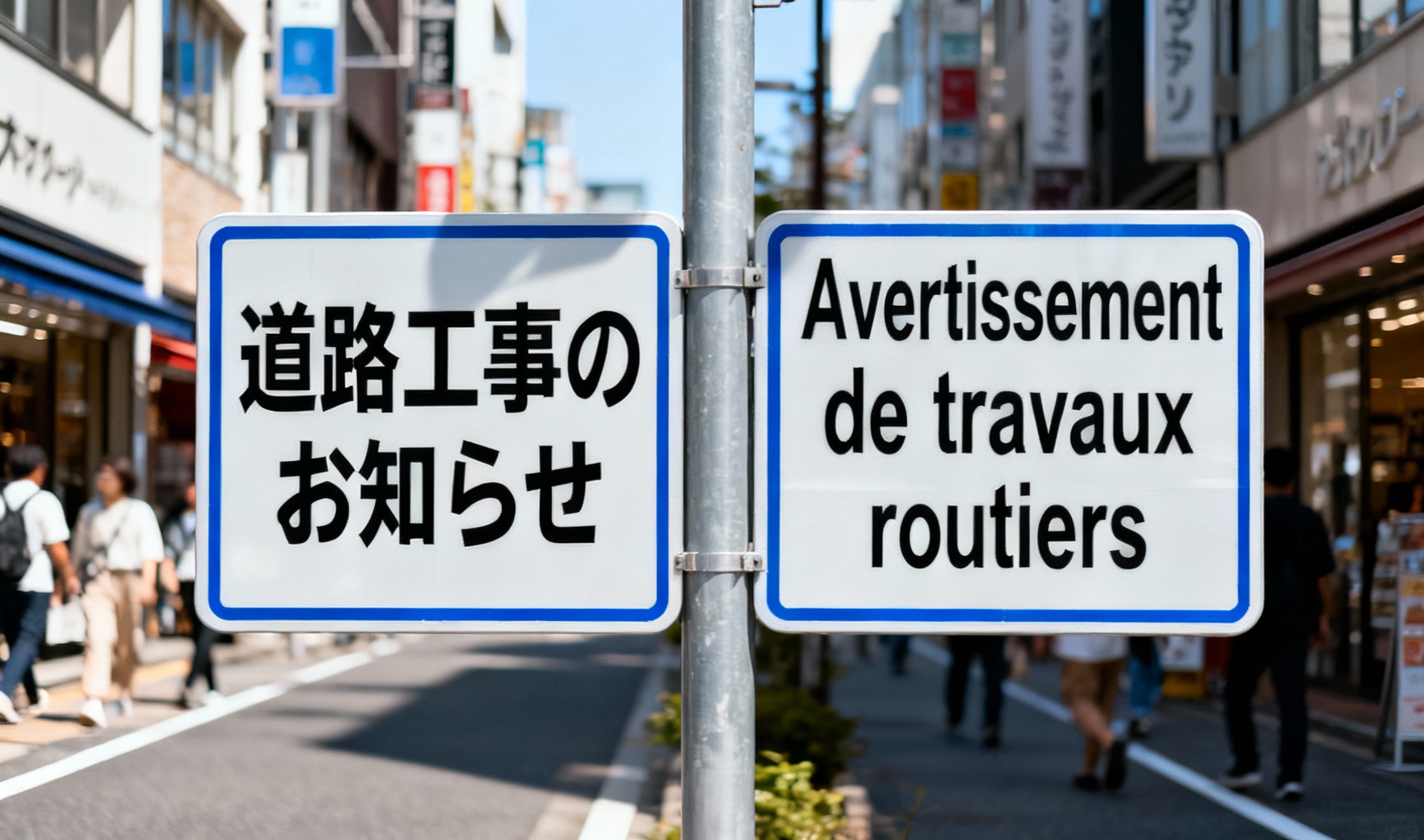
Signage Translation
Translate street signs and public notices from Japanese to French while maintaining readability and visual appearance.
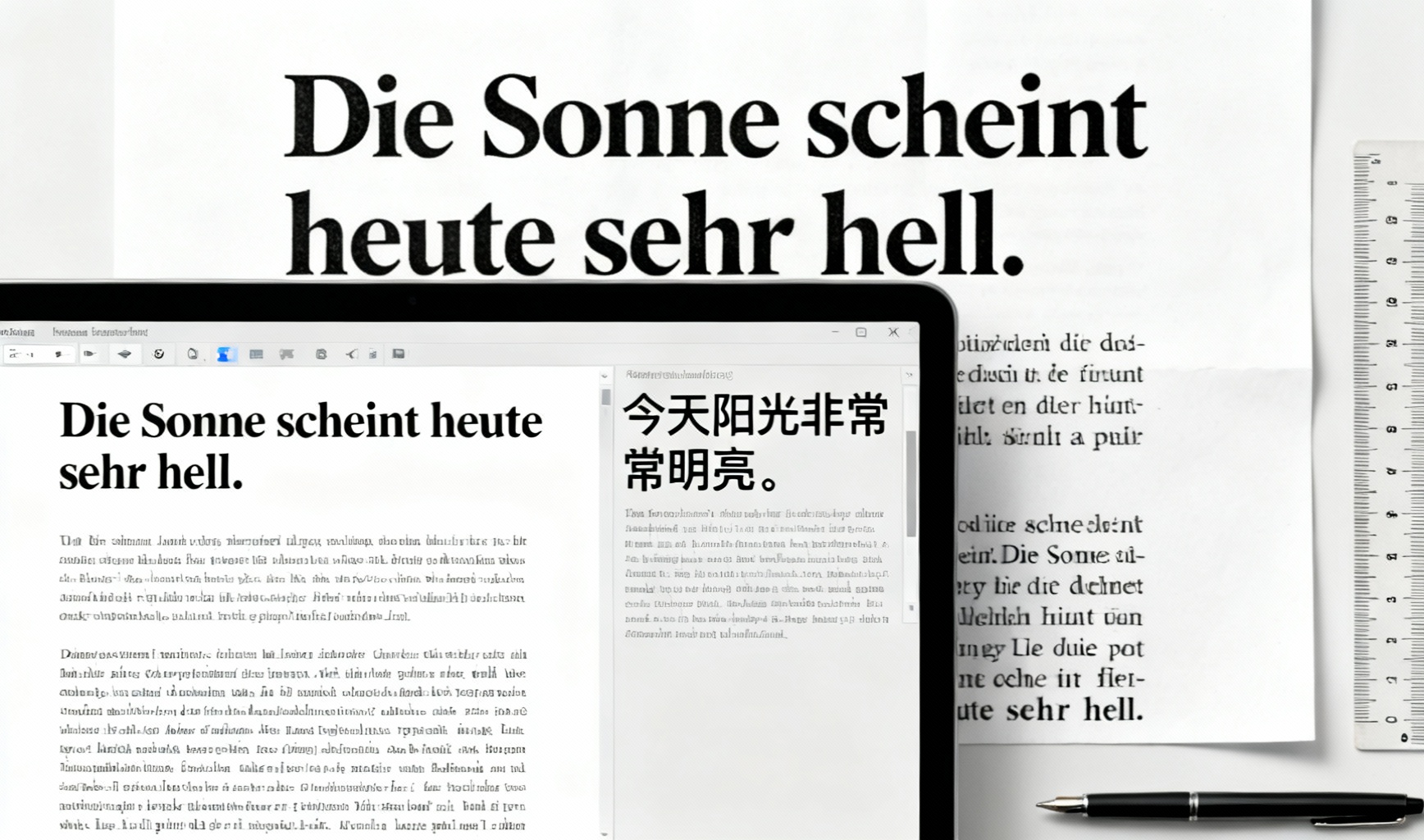
Document Translation
Photograph a German document and translate its text into Simplified Chinese while keeping the original formatting.

Product Label Translation
Translate product labels and packaging from Italian to English while preserving brand identity and design elements.

Poster Translation
Translate promotional posters from Russian to Spanish while maintaining visual hierarchy and artistic style.
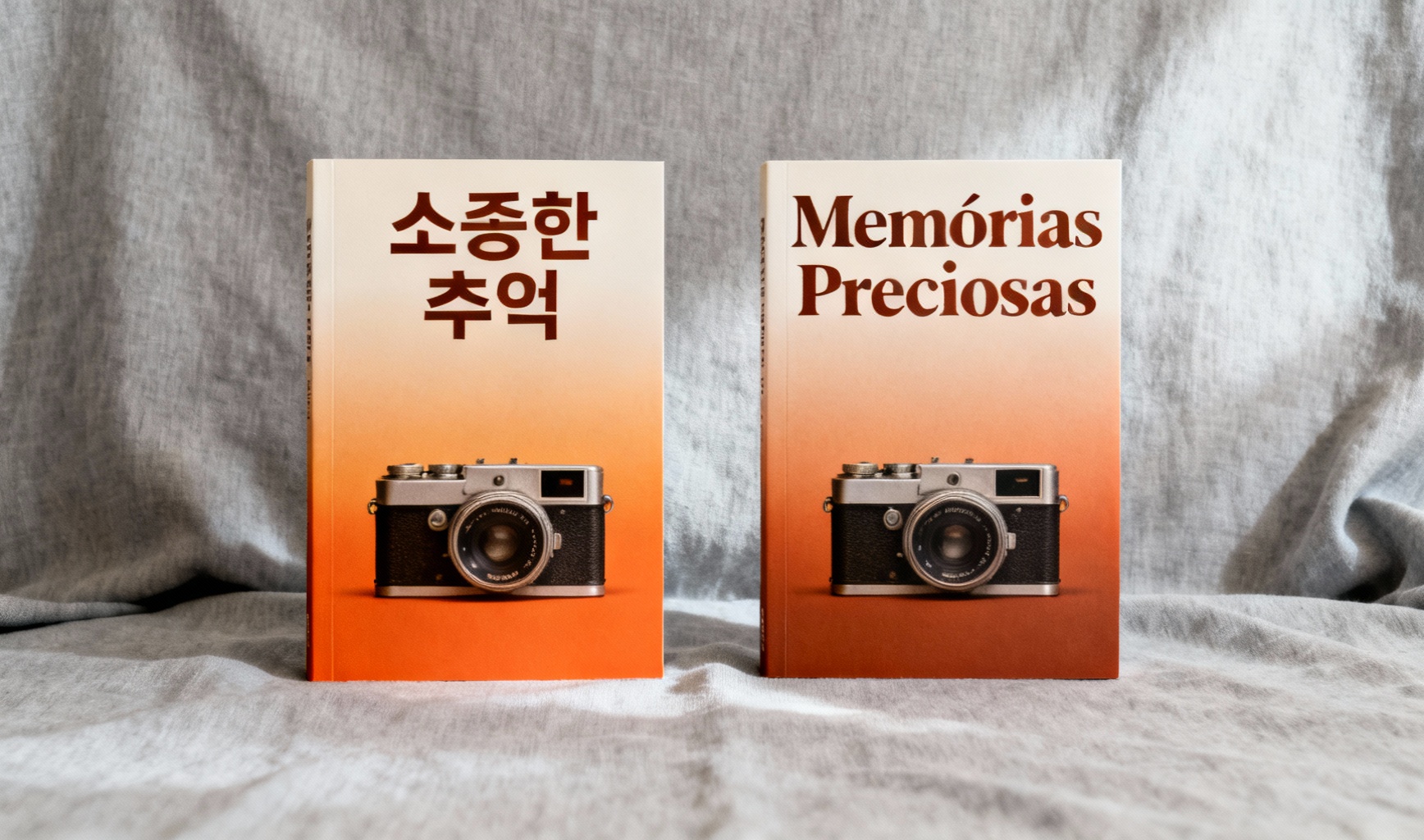
Book Cover Translation
Translate book titles and covers from Korean to Portuguese while preserving typography and design aesthetic.
Why Choose Our Photo Translator
Our photo translator offers advanced capabilities to accurately translate text in a photo.
Accurate Text Translation
The photo translator automatically detects and translates text in a photo while preserving the original design, font, and layout.
Batch translation
Select up to 20 images at once. They are queued automatically, and you can download each result or all of them as a ZIP.
Efficient Processing
Our tool automatically recognizes the text in your photo and produces a professional-quality translation with layout preservation.
High-Quality Results
Get professional translation results with excellent detail preservation and color accuracy for all types of photos.
25+ Language Support
Translate text in a photo across over 25 languages including English, Chinese, French, German, Spanish, Japanese, and more.
Custom Instructions
Provide detailed translation instructions to achieve exactly the result you need for your specific use case.
Secure Processing
Your images are processed securely. See our Privacy Policy for details.
Watermark-Free Results
Every translated photo comes without any watermark or brand logo, so the final photo is clean and ready to use directly for work, study, and sharing.
How the Photo Translator Works in 3 Easy Steps
Translate text in a photo quickly and easily with our simple process
Take or Upload a Photo
Select or upload 1–20 images at once; they are translated one after another automatically.
Select Target Language
Choose the language you want the text in your photo to be translated into.
Get Your Translated Photo
Our tool processes your request and delivers the translated photo in about 20 seconds.
Photo Translator FAQ
Everything you need to know about translating text in a photo
Will the translated photo have a watermark?
-No. Our photo translator never adds any watermark, logo, or brand label to your translated photo. Whether you snap it with your phone camera or upload an existing picture, the image you save stays clean and can be used directly for work, study, and sharing with friends.
How to photograph a foreign restaurant menu and translate it?
-Hold your phone directly above the menu so the page lies flat, fill the frame with the text, and make sure the lighting is even so there are no shadows. Take the shot, upload it, and pick your target language — the tool translates dish names, ingredients, and prices while keeping the original layout. For long menus, photograph one page or section at a time for the clearest result.
How to photograph street signs, shop signs, and public signage for translation?
-Stand back far enough that the whole sign fits in the frame, and hold the camera straight on rather than at a sharp angle. Wait for good light or use HDR mode to avoid glare from glass and metal. Then upload the photo, and the tool translates the text while handling the varied fonts and colors you meet on shop signs and public boards.
How to photograph museum exhibit cards, attraction tickets, and brochures while traveling?
-Set the exhibit card, ticket, or brochure on a flat surface, or pause in front of it and shoot straight on, keeping the text large and sharp in the frame. Use natural window light or a steady hand so the small print stays legible. Upload the photo and the tool translates the descriptions and details so you can enjoy the visit without missing the meaning.
How to photograph product labels and price tags while shopping abroad?
-Get close enough that the small print on the label or price tag is clear, tap the screen to focus, and avoid reflections on plastic wrapping. A quick shot of the front and back is usually enough to capture ingredients, care instructions, and the price. Upload it and the translation helps you make confident decisions while shopping abroad.
Can I photograph handwritten notes, sticky notes, and whiteboards for translation?
-Yes. Our tool can read neat, legible handwriting on notes, sticky notes, and whiteboards, though accuracy depends on how clear the writing is. Use a steady hand, good light, and shoot straight on so the letters aren't slanted. Regular printed text is still recognized more reliably than messy or cursive handwriting.
How to photograph textbook pages and study notes?
-Lay the book or notebook open flat, press the pages down, and photograph one page at a time so the text fills the frame and stays sharp. Hold the phone parallel to the page to avoid shadows and slant. Upload each photo and the tool translates the passages so you can study foreign-language materials more easily.
How to photograph a passport, ID card, or visa for translation?
-Photograph only the relevant page, keep the document flat and well-lit, and frame just the area you need so every field is readable. These translations are for your own understanding only — do not share photos of ID documents with untrusted parties, and confirm official requirements with the relevant authorities before any formal use.
How to photograph medicine packaging and prescription labels?
-Photograph the entire label, including the small dosage and warning text, holding the camera close and steady in bright, even light. Turn the box or bottle to capture the back panel too if needed. The translation is a helpful reference, but always rely on the original label and consult a doctor or pharmacist before taking any medication.
Can I photograph subtitles on a TV or movie screen?
-Yes, but screens are trickier — turn off the flash, pause the video, and shoot straight on to avoid moiré patterns and reflections. A darker room and a steady hand help the subtitle text come out crisp. Then upload the frame and the tool translates the subtitle line for you.
How to photograph a game interface or app screen for translation?
-Take a screenshot of the game menu or app screen for the sharpest, most readable result — it is clearer than pointing a camera at the display. Make sure important text and buttons aren't covered by pop-ups. Upload the screenshot and the tool translates the interface text, dialogs, and menus.
How should I hold the camera to get the best translation result?
-Use both hands, brace your elbows against your body, and wait a moment after the frame settles before tapping the shutter — this prevents the motion blur that hurts text recognition. Keep the phone parallel to the text so lines stay straight, and tap on the words to focus. In low light, rest the phone on a steady surface or use a small tripod.
What if my photo is blurry, dark, or has glare — how can I fix it?
-Blurry, dark, or glaring photos are the biggest cause of poor results, but you can usually fix them by retaking the shot. Move into brighter, even light, wipe the lens, tap to focus, and hold still. If glare remains, change your angle slightly or shade the text with your hand, then re-upload — a clean original always beats a heavy digital fix.
How do lighting, flash, and reflections affect photo translation?
-Lighting affects recognition more than almost anything else. Soft, even, natural light works best; direct flash often creates hot spots and washes out text, so keep it off unless the scene is very dark. Watch for reflections on glossy paper, glass, and screens, and tilt the camera a little to shift them out of view.
Should I use portrait or landscape orientation when photographing text?
-Match the orientation to the text. For a single page, poster, or sign, landscape often fits the width better, while portrait suits taller content like menus, book pages, and phone screens. Either way the translator works — the key is that the text runs straight across the frame and isn't cut off at the edges.
Should I photograph the whole page or just the text I need translated?
-Photograph the whole page or sign when you can, because context helps the tool translate more accurately, and crop afterward if you like. If you only need a short phrase, framing just that text with a little surrounding margin works fine too. Just keep the words sharp and right-side-up.
What camera resolution or settings do I need for accurate translation?
-You don't need a professional camera — most modern smartphones capture text with plenty of detail. Use the main rear camera, focus on the text, keep the photo at its native resolution, and avoid heavy digital zoom. A clear, well-lit shot at default settings is all it takes for reliable results.
How to photograph a multi-page menu or document one page at a time?
-Photograph the menu or document one page at a time, keeping each page flat and fully in the frame, then upload the pages one after another. Each photo saves to your history, so you can translate and review them in order. Working page by page keeps the text large enough for the tool to read accurately.
Can I rotate or crop the photo before translating?
-Yes. If your photo is sideways or has extra background around it, rotate it upright and crop in on the text before uploading — small phone edits don't hurt quality. Keeping the text straight and level gives the tool its best chance. You can also upload the raw photo, since the translator handles minor tilt, but a straight, cropped shot is always more reliable.
What photo file formats are supported (JPG, PNG)?
-The photo translator accepts JPG, JPEG, and PNG photos, up to 10MB each. These are the most common formats on modern phones, so virtually any picture you take is covered.
How accurate is the photo translation?
-For clear, well-lit photos of printed text, accuracy is very high, because the tool automatically recognizes the text in the photo and reads the surrounding context. Handwriting, stylized fonts, and low-light shots are more challenging, so results may be less reliable there. For anything critical, give it a quick human review.
Which languages does the photo translator support?
-The photo translator supports over 25 major languages, including English, Spanish, Chinese, French, German, Japanese, Korean, Russian, Arabic, Portuguese, and more. Recognition and translation quality can vary slightly between languages. Pick your target language from the menu before uploading and you're ready to go.
How long does photo translation take?
-Most photos are translated in about 20 seconds from upload to finished result. Very text-heavy images or busy periods can push that a little higher, but typical menu, sign, and label photos stay fast. A stable internet connection keeps the process quick.
Are my photos private and secure?
-For details on how we collect, use, and protect your data, please see our Privacy Policy and Terms of Service.
Do I need an internet connection to use the photo translator?
-Yes, an internet connection is required, because the photo is processed in the cloud rather than on your device. A stable Wi-Fi or strong 4G/5G connection gives the fastest, most reliable results. The tool works right in your mobile browser, so you can translate on the go as long as you're connected.
How do I save or share the translated photo?
-After translation, download the result as an image file straight to your phone or computer, with the translated text already placed into the photo. From there you can save it to your gallery, send it in a chat, or share it on social media the way you would any other picture. The result has no watermark, so it's ready to use as-is.
Can I translate multiple images at once?
-Yes — you can select up to 20 images at a time. They are processed automatically one after another, each taking about 20 seconds, so more images take longer overall. Download each result or all of them as a ZIP, and every result is saved in your history. Batch translation is billed per image at the normal rate.
Ready to Translate a Photo?
Take or upload a photo and let our photo translator help you break the language barrier.